Troubleshooting
This page lists common problems with a RapiD Vision installation and how to solve them. Work through the checks of a problem in order: the most common causes are listed first.
My vision box is not making detections
Products pass under the camera, but no detections appear in Live View, or products are detected but never sorted.
See what the tracker is doing
Turn on Tracker ID, Tracker and Encoderpulse in the Style card on Options ▸ Advanced. Live View then shows each tracked product, the path it follows and the encoder value, which makes most of the problems below easy to spot.
Check the conveyor direction
Open Options ▸ Advanced and check Conveyor direction under Conveyor Options (Up, Right, Down or Left).
The direction must match the direction in which products move through the camera image as shown in Live View, not the direction of the conveyor as seen from the operator's position. A product is only processed once it leaves the Release Field on the side it is moving towards. If the direction is wrong, products leave the image without ever leaving the Release Field "correctly", so they are never released, processed or sorted.
Check the direction again after a camera has been mounted differently, rotated or replaced.
Check Pulse per mm when using the Classic tracker
This applies when the Tracker Type of the detector in the active Vision Configuration is Classic and an encoder is connected.
The Classic tracker uses the encoder to predict how far each product has moved between two camera frames: the number of encoder pulses is converted to millimetres with Pulse per mm, and then to pixels with the camera calibration. If Pulse per mm is wrong, the predicted position no longer matches where the product really is. The tracker then cannot link the detections of the same product across frames, and products are lost, or counted more than once.
Check the following:
- In Lane Manager, open the Robot lane and check Pulse per mm. It must match the number of encoder pulses per millimetre of conveyor travel. If no Robot lane with an IP address is configured, a value of
1is used. - On the same lane, check Modulo Min and Modulo Max. They must match the range in which the encoder value wraps around.
- On Options ▸ Advanced, check that Encoder Source is set to the source the encoder is actually connected to (Robot, Phidget or Camera).
- With Encoderpulse turned on (see the tip above), run the conveyor and check that the encoder value in Live View changes. If it does not change, the encoder is not counting or is not connected.
- Check that the camera has been calibrated, see Camera Calibration. The calibration is used to convert millimetres to pixels.
To check Pulse per mm: turn on Tracker and watch the tracker path in Live View. The path should stay on the product while it moves through the image. If it runs ahead of the product, or lags behind it, Pulse per mm is wrong.
Check Translation difference when using the Classic tracker
This also applies when the Tracker Type is Classic. Open Options ▸ Advanced and check Translation difference under Tracker. The value is in pixels.
In every new camera frame, the Classic tracker moves each tracked product forward by the distance the encoder reports, to its expected position. A new detection within Translation difference of that expected position, in any direction, is treated as the same product, and its track continues. If more than one detection is within reach, the closest one is used. A detection further away is treated as a new product.
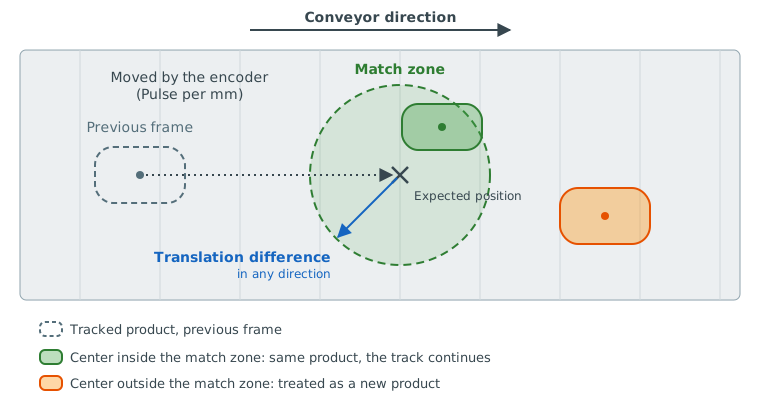
- Set too low: the same product is not recognised from one frame to the next. It gets a new track every frame, and is lost, or counted more than once. In Live View, the Tracker ID of a product keeps changing.
- Set too high: two products close to each other are taken for the same product. One of them is not processed. In Live View, two products share one Tracker ID.
Adjust the value in small steps while watching Tracker ID in Live View. Without a working encoder the expected position does not move, so Translation difference must cover the full distance a product travels between two frames. Fix the encoder first (see above) instead of raising this value.
Check the Minimal Area
Open Options ▸ Filters and check Minimal Area.
Minimal Area is the minimum size of a detection in pixels (not mm²). Anything smaller is discarded. This applies to every detector, Classic and AI alike. If it is set too high, small products are not detected at all. This often happens after a camera has been replaced or moved, or when smaller products are run than before.
Lower Minimal Area step by step until all products are detected, while keeping it above the size of dust, crumbs and other small particles you don't want to detect.
Check the Sorting Recipe matching
If products are detected but are not sorted, or are all sent to the same destination, check the Sorting Recipe:
- Is a recipe active on this lane? A recipe can be limited to specific lanes. A lane without a recipe only uses a recipe set to Run on every lane, see Lanes.
- Does the recipe belong to the active Vision Configuration? Recipes are created inside a Vision Configuration and use its labels.
- Does the Label of the Main Condition match? The label must be one the detector actually reports. Use No Label to match any product.
- Are the ranges correct? Check the weight, length, width and area ranges and their units (g, mm, mm²), and the Min Score (%), see Main Conditions.
- Is the first Sorting Item a catch-all? A product that matches no Sorting Item is sent to the destination of the first Sorting Item. If all products end up there, they probably don't match any of the other items.
- Are defects being missed? On Basic lanes, check the Recipe Log Warnings in Lane Manager for defect spots that were too small, or scored too low, to match a Defect Condition.
Other things to check
- Release Field — on Options ▸ Filters, check that the Release Field (green rectangle) covers the area the products pass through. A product must enter the Release Field and then leave it to be processed.
- Lanes — a detection outside every lane polygon is rejected. Check the lane polygons on Options ▸ Lanes. With Lane assignment mode set to All 4 bbox corners inside lane, a product that partly sticks out of its lane is rejected as well.
- Score Threshold — for AI detectors, a Score Threshold (%) in the Vision Configuration that is set too high rejects products the model is not sure about.
- Active Vision Configuration — check that the right Vision Configuration is active on the device, with the right Task Type and Model for the product.
- Filter range — for Classic detectors, the Filter range on Options ▸ Filters may no longer fit the product or the lighting. Select Calibrate with a product in view.
- Camera image — check that the camera protective window is clean, the lighting is on, and the image in Live View is sharp and not too dark.
- Eco mode and standby — in eco mode the software is paused and nothing is detected (the logo lights up green), see Eco mode. In standby, detection is slowed down until the next product arrives.
- Settings mode — while the device is in settings mode, processing is paused and nothing is sent to the robot. If a banner says Settings mode is on, select Exit settings mode. See Settings Mode.
- Disabled conveyor — a conveyor that is disabled in Machine management is not used for sorting. Its tile shows a Disabled banner.
If none of the above solves the problem, contact RapiD Engineering.